

 Supported

About This File
NHP Nevada 4 Pak By blade2k5 & papab2000
Map Details and Information
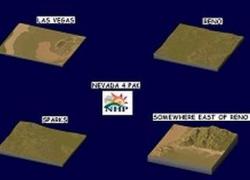
Las Vegas
Established in 1905, Las Vegas officially became a city in 1911. With the growth that followed, at the close of the century Las Vegas was the most populous American city founded in the 20th century (a distinction held by Chicago in the 19th century).
Reno
Reno, known as "The Biggest Little City in the World", is famous for its casinos, and is the birthplace of the gaming corporation Harrah's Entertainment.
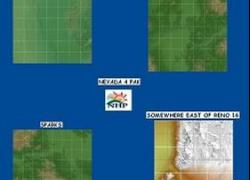
Somewhere East of Reno 16
This is an unpopulated area east of Reno, used for open range,
Sparks
Although Sparks was originally distinct from Reno, they have both grown toward each other to such a degree that today the border between them is purely political. They are often referred to as a twin city
Map Specifics
Map Type: Real World
Region map size:
Las Vegas: 7 x 6 large tiles/42 total Author: blade2k5
Reno: 7 x 7 Large Tiles/49 total Author: blade2k5
Somewhere East of Reno 16: 3 x 3 Large Tiles/9 total Author: papab2000
Sparks: 8 x 7 Large Tiles/56 total Author: blade2k5
config.bmp size: included with zip file
Dependencies: Either SC4 Mapper or SC4 Terraformer for importing.
Maps were created by taking USGS DEM data and converting the data through a series of processes to a 16bit grayscale png.
Install/Uninstall Instructions
Installing the Map
To install SC4M map file:
1. If you don't already have SC4Mapper, download it here and follow the install instructions.
2. Unzip this file.
3. Run SC4Mapper, click on 'create region'
4. Choose SC4M
5. Browse to the unzipped folder and point the map file .SC4M
6. Click on 'Save Region' and name it, and Quit SC4Mapper
7. Run SC4 and load the new region. The colors of the region in SC4 will be the same colors as SC4Mapper until you enter and save each city tile. But you have the choice to do it as you go and not right away.
SC4Terraformer
1. Create a new region folder in your Plugins\Region
2. Copy my config.bmp into the folder and overwrite the old one. (make changes to config.bmp file now if you want)
3. Open the new region you just created with SC4 Terraformer
4. Click on Import Image in the Global Tools Menu and browse for my SC4M file.
5. When file is imported click File - Save (the region is now saved to SC4
6. The colors of the region in SC4 will be the same colors as SC4TF until you enter and save each city tile. But you have the choice to do it as you go and not right away.
Start opening tiles!
Any comments and feedback welcomed. Thanks for looking and enjoy.
Credits
blade2k5 & papab2000 - Original map creation, scaling, importing. SC4TF modification.
Check out more maps by blade2k5 and NHP
https://www.simtropolis.com/STEX/index.cfm?page=1&Keyword=NHP&view=all
https://www.simtropolis.com/STEX/index.cfm?page=1&Keyword=blade2k5&view=all
https://www.simtropolis.com/STEX/index.cfm?page=1&Keyword=papab2000&view=all
Feedback and Support
NHP SimCity4 Devotion Support -https://www.sc4devotion.com/forums/index.php?board=66.0
NHP Simtropolis Support Thread - https://www.simtropolis.com/forum/categories.cfm?catid=355&entercat=y


Recommended Comments
Sign In or register to comment...
To comment in reply, you must be a community member
Sign In
Already have an account? Sign in here.
Sign In NowCreate an Account
Sign up to join our friendly community. It's easy!
Register a New Account