Jump to content
  •   Announcement

World

  • Entries
    28
  • Comments
    525
  • Views
    120,960

Rain Tutorial

Sign In to follow this  
ilikehotdogsalot

812 Views

1-28.jpg

Step 1: Open up the picture you want to work on, I picked this picture from my Shanghai update.

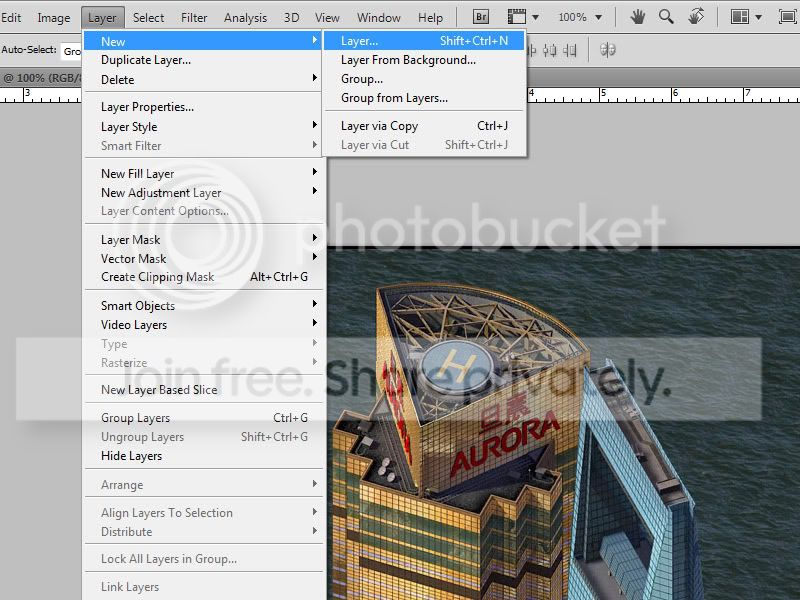
Step 2: Go to Layer, and down to New > Layer
2-24.jpg

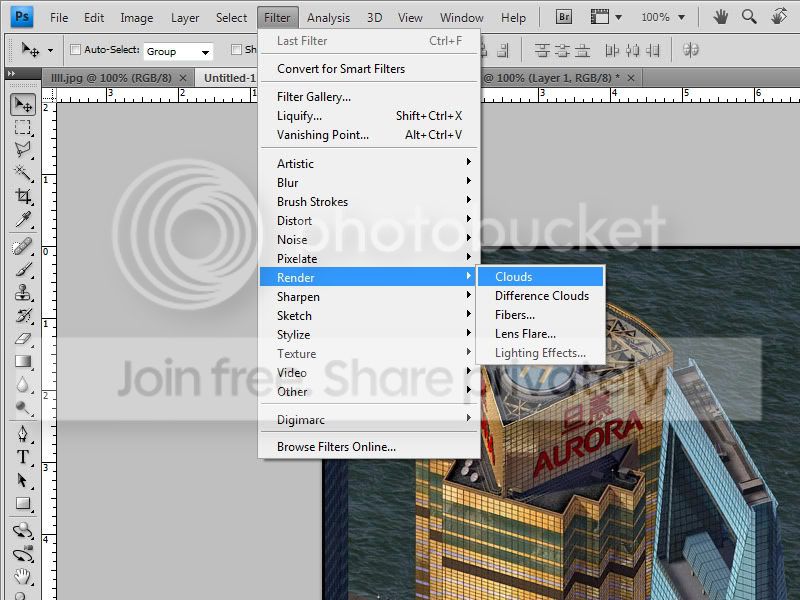
Step 3: Go to Filter > Render > Clouds, make sure your colors in the tool menu are black and white.
3-21.jpg

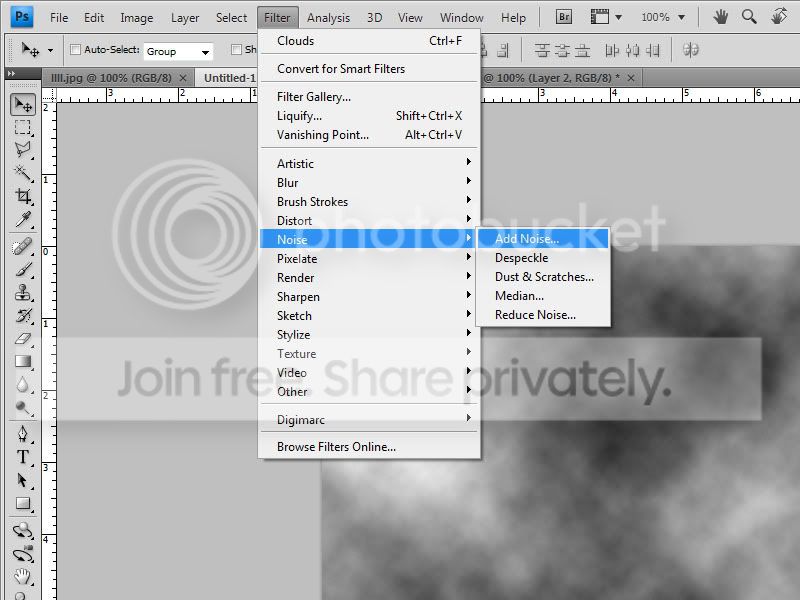
Step 4: Now go to Noise > Add Noise

4-13.jpg

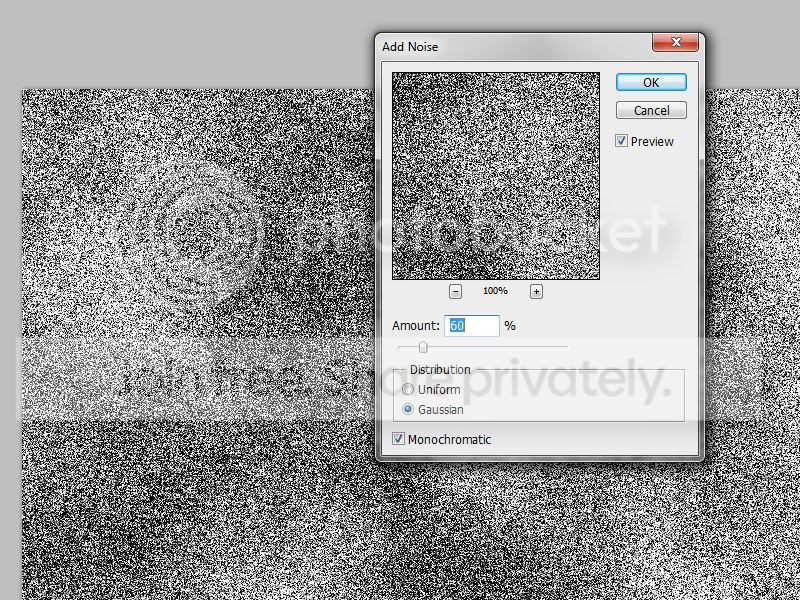
Step 5: A pop up will come up, choose these settings.
5-7.jpg

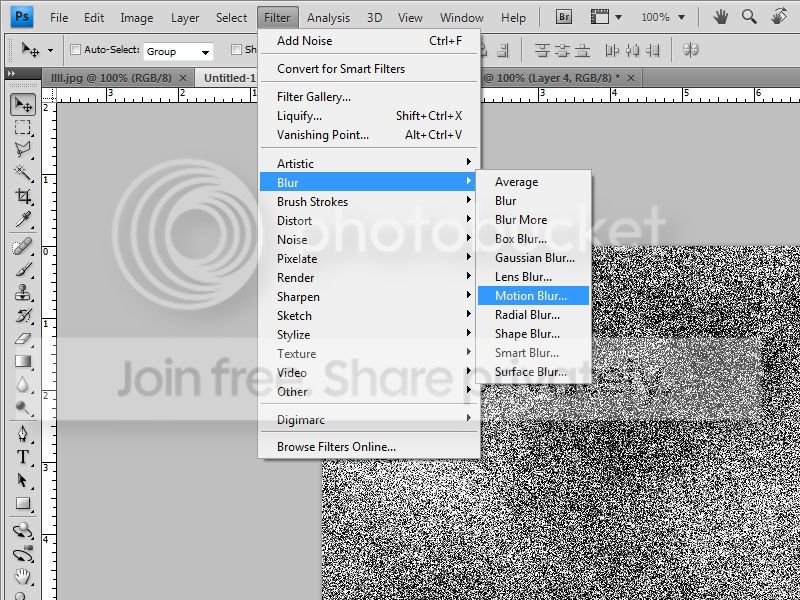
Step 6: Now, go to Blur > Motion Blur
6-6.jpg

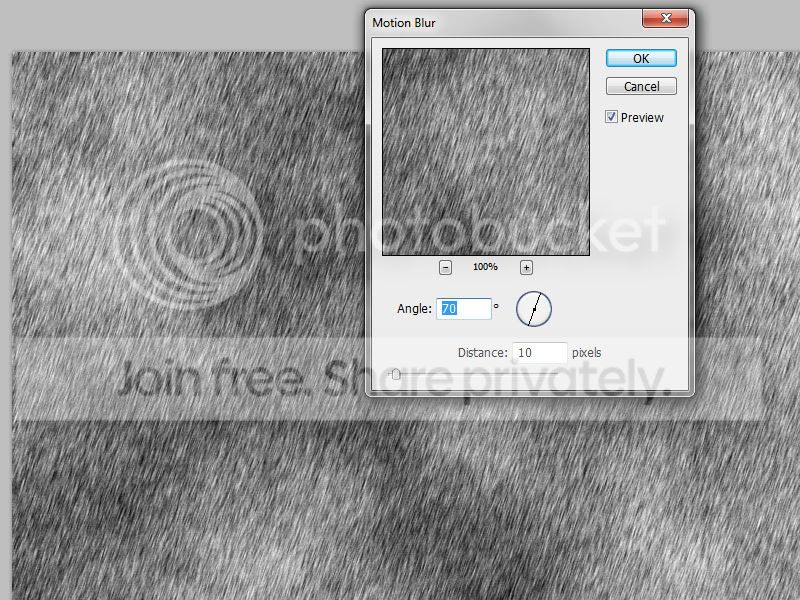
Step 7: A popup will also come up, choose these settings.
7-2.jpg

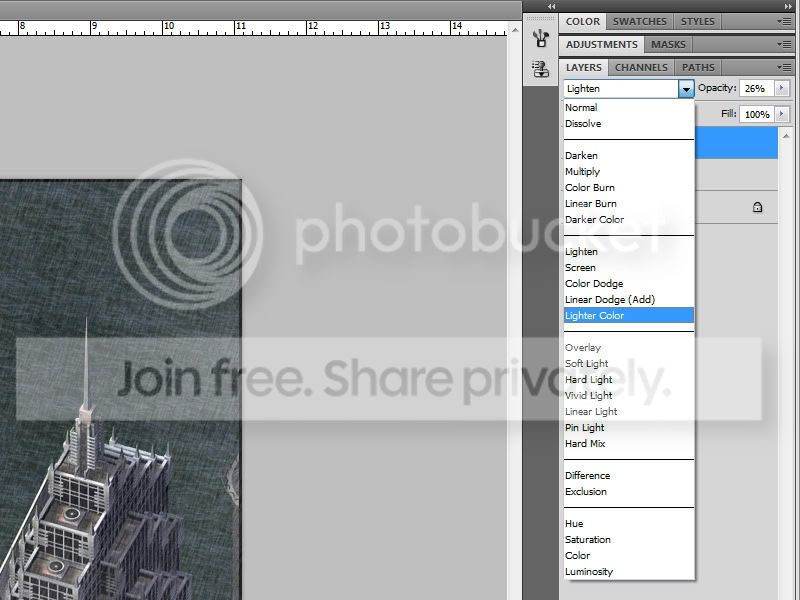
Step 8: Go to the layers tab on the right side, and change the opacity to a number around 30% and change the blending to Lighter Color if you'd like.
8-1.jpg

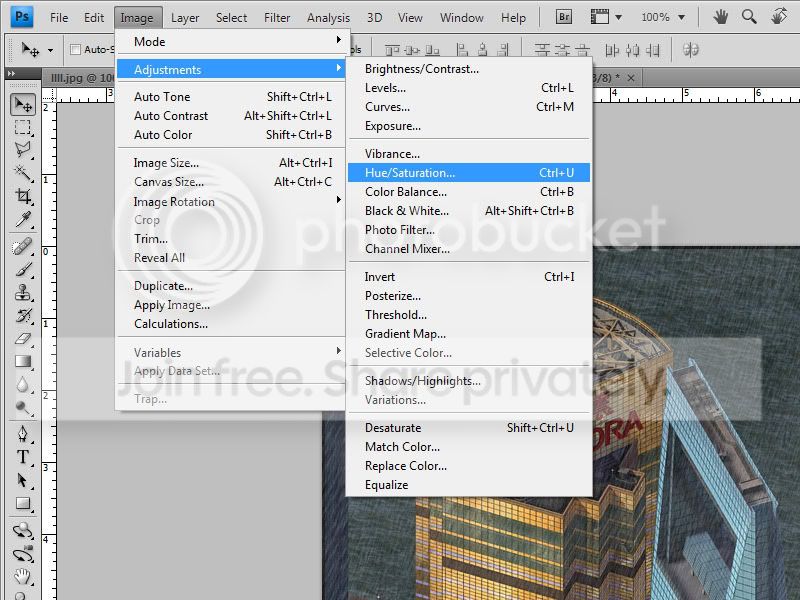
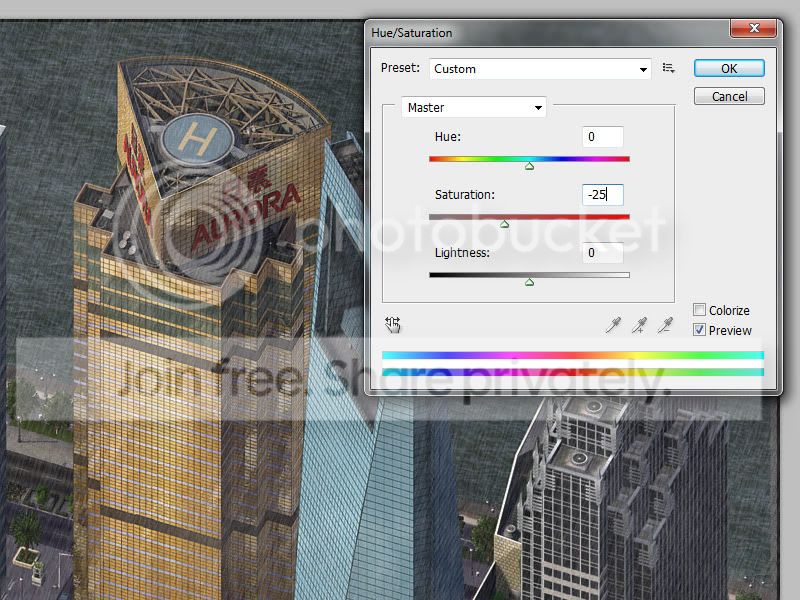
Step 9: It looks a little too colorful for a rainy day, so go to Image > Adjustments > Hue Saturation. Make sure you are doing this to layer 1, saturating the rain won't really do much.
9-1.jpg

Step 10: Change the saturation to around -25 and you're done!

Sign In to follow this  


20 Comments


Recommended Comments

 This should go into the bookmarks on my browser :)) Great work. I hope that whoever uses this in pictures will give credit to ilikehotdogsalot. By the way, what Photoshop are you using? CS4?

Share this comment


Link to comment
Have you considered making this a part of the Omnibus, it's a very good tutorial

Share this comment


Link to comment
Great tutorial, Daniel. It should work about just the same for GIMP, no?

Ethan

Share this comment


Link to comment
I'm not sure, I have never worked GIMP. If it has the same features, then I guess it might. I might submit it for the Omnibus soon if you guys think it should go up there :)

Share this comment


Link to comment
@ Animaniacs: That would be Adobe Photoshop, one of the newer versions.

And great tutorial; I tried it and it works wonders!  Definitley omnibus material!

Share this comment


Link to comment
 For those using GIMP: It's the same thing all the way down to the part where you have to make the layer a lighter color. My solution is to use the "Eraser" function in the toolbox, and set the opacity to around 70%. Then, "Erase" the whole picture, with the scale set to 10.00 and the brush selected as 19. It does the same thing, but do it in one big sweep, otherwise it erases too much.

Share this comment


Link to comment

Sign In or register to comment...

To comment in reply, you must be a community member

Sign In  

Already have an account? Sign in here.

Sign In Now

Create an Account  

Sign up to join our friendly community. It's easy!  

Register a New Account

×

Thank You for the Continued Support!

Simtropolis depends on donations to fund site maintenance costs.
Without your support, we just would not be in our 24th year online!  You really help make this a great community. *:thumb:

But we still need your support to stay online. If you're able to, please consider a donation to help us stay up and running. This helps sustain a platform where we can share our community creations for years to come.

Make a Donation, Get a Gift!

Expand your city with the best from the Simtropolis Exchange.
Make a Donation and get one or all three discs today!

STEX Collections

By way of a "Thank You" gift, we'd like to send you our STEX Collector's DVD. It's some of the best buildings, lots, maps and mods collected for you over the years. Check out the STEX Collections for more info.

Each donation helps keep Simtropolis online, open and free!

Thank you for reading and enjoy the site!

More About STEX Collections