



NAM36 Tutorial: Starting Out with Basic RHW Highway Ramps (DRI)

NAM36 Tutorial: Starting Out with Basic RHW Highway Ramps (DRI)
Draggable Ramp Interface (DRI) is the fastest, most flexible, most productive way to build highway ramps. Never used DRI? ... or never constructed a highway ramp? I've created an animated GIF to show how it's done, see below.
Here's the two most basic of RHW highway ramps ... every RHW interchange builder does lots and lots of these!
Type A1 outside ramp Type B1 outside ramp
.jpg.e975b6c5bf59a6c057cc4ea113ea45e8.jpg)
.jpg.c8a77493c58079ab01269a630cc143c9.jpg)
On a 6 point scale, these Type A1 and Type B1 outside highway ramps rate as Intermediate:
Beginner ► Intermediate ► Advanced ► Difficult ► Sophisticated ► Expert
There are ways to create simple basic intersections using RHW-2, MIS, and RHW-4, but highway ramps look better, and unlike an intersection, they don't interfere with high volume highway traffic. Highway ramps are also some of the key basic features behind creating RHW highway interchanges (which is often the dream of SimCity 4 players new to the NAM), such as these interchanges I constructed recently ...
.jpg.b9fbea0df48c0e713213d285f9ef9130.jpg)
.jpg.89d15d88d26b3dd01395236e2d60980c.jpg)
.jpg.9ae5b4f860a45918f652ed91cf10d1b8.jpg)


While you can plop these basic ramps using the FLEXRamps menu, it's actually much better to learn DRI, for many, many reasons:
- Many advanced highway ramps cannot be created at all without DRI.
-
DRI is quicker and more convenient to use, once you're used to it, no menus or tabs to navigate. Just draw the ramps you want!

- DRI is better for creating compact interchanges.
- DRI is easier for counting tiles and planning interchanges.
- Sometimes FLEXRamps don't want to plop in the position you want them.
- When something goes wrong with DRI, it's easier to spot the problem.
-
If you make a mistake, press B for the Bulldoze tool and just remove the bits you don't want, without it affecting anything else. You can't do that with a FLEXRamp.
IMPORTANT TIP: Don't use the Bulldoze tool in the tile next to a FLEXHeight piece! Those FLEXHeight pieces are fragile as glass. Use the NAM Disconnector tool instead, whenever you're working next to fragile RHW pieces.
Let's Do It! 
Here's the animation sequence, then follows the explanation.

DRI is about drawing the ramps you want, simply using the all-purpose RHW-2 tool. This tool is all you need. 

I'm showing this example by creating highway ramps on the RHW-4, but you can use the same techniques to create highway ramps for RHW-2, or for bigger highways, too.
The first two steps, are to use the RHW-2 tool to create a RHW-2 stub off to one side of your highway, then make a tight 90 degree corner, in the direction the ramp needs to go.
.jpg.86cb57494331a617194d012d643bfff9.jpg)
.jpg.354d2ead3fc667f206163823f64a9f30.jpg)
That's the two tile starting place to making either a Type A1 or Type B1 ramp using DRI.
Type A1 – Drag the RHW-2 forward, parallel to the highway, for a Type A1 outside ramp. Observe the yellow preview, which shows what the ramp is going to look like. You learn to trust those previews, and press the Esc key if it doesn't look right!
.jpg.6bcba605402270d07e185d84d814ea61.jpg)
Type B1 – Alternatively, if you want a ramp at 45 degree angle, or a ramp that has a one tile gap from the highway, drag the RHW-2 at 45 degrees, for a Type B1 outside ramp.
.jpg.3de9302dae86dcecac1923178b745245.jpg)
It's that easy! Enjoy your more convenient ramp making, and remember, every bit of practice you get with DRI, is helping prepare you for more advanced highway construction techniques! 
But what if something goes wrong?
Something will go wrong. Yep, it happened to me; it will happen to you, too! 
Here's the three most likely issues to cause it to go wrong.
-
If it turns red when you're trying to do the first step, the stub, that usually means you're trying to do the draw on top of a Starter Tile in that spot. Use the Disconnector tool to remove those pieces of RHW-4 highway, and then redraw the RHW-4, and then try again.

-
If it fails to convert into a ramp, that usually means you're trying to do the draw right next to a Starter Tile ... and that doesn't work, either. The solution is the same as for issue 1 above. If that doesn't fix it, you're probably trying to draw the ramp in the wrong spot, which is particularly an issue for the Type B1 ramps ... move your ramp 1 tile further down the highway, and try again.

-
If it turns red when you're trying to do the last step, the culprit is probably the FLEXHeight piece you're drawing next to! They do that. Use the Disconnector tool to remove the 4 tiles of the 1-Level Flexible Height Transition piece, then redraw 3 tiles of the RHW-4, then complete the draw of your Type A1 ramp, then go back and re-plop the 1-Level Flexible Height Transition piece. Sometimes the draw comes good if you just drag it further, which is always worth trying.
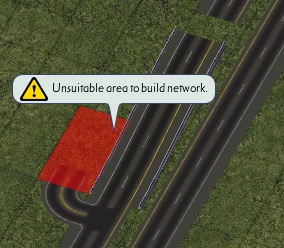
Sometimes FLEXHeight pieces are no trouble at all, other times they are super annoying that way. This is all part and parcel of interchange construction order, which is another skill you will learn if RHW interchanges are something you're keen to do. 
::::::::::::::::::::::::::::::::::::::::::::::::::::::::::::::::::::::::::::::::::::::::::::::::::::::::::::::::::::::::::::::::::::::::::::::::::::
See the full catalog of my NAM tutorial posts linked in the comments under this other Simtropolis post of mine ...
NAM36: Starting Out advice for newcomers
-
 7
7


0 Comments
Recommended Comments
There are no comments to display.
Sign In or register to comment...
To comment in reply, you must be a community member
Sign In
Already have an account? Sign in here.
Sign In NowCreate an Account
Sign up to join our friendly community. It's easy!
Register a New Account