


Contributor/author(s): Wren Weburg, Sean Breazeal, Jonathan Ellis
SimCity 3000 doesn't ship with a workable terrain editor like SimCity 2000 did. You're basically limited to the landscape tools found on the SimCity 3000 toolbar. Unfortunately, these tools can only shape small amounts of land at a time, and boy are they expensive to use. While they are great for quick terrain modifications, they just don't cut it for large-scale terraforming.
No fear! SimCity 3000 comes with something even better than SimCity 2000's terrain editor and the not-so-powerful landscape tools in SimCity 3000. SimCity 3000 lets you "paint" your own terrain by importing special bitmaps. Using this method, you can make virtually any kind of terrain you want. This even includes sharp cliffs (almost vertical, in fact!), realistic volcanoes, rivers, or even faces! Or import USGS data and you have instant, real-world terrain.
The bitmap
First you need a bitmap that can be imported into SimCity 3000. Here are the requirements for the bitmap:
- Must be an 8-bit grayscale BMP file (can't be a GIF!)
- Must not contain any color (because the file is grayscale, of course!)
In addition, the size of the bitmap (its physical dimensions) should always be 1 pixel greater than the size of the city you're creating the terrain for. Here is a table:
| City size (W x H) | Bitmap size (W x H) |
| 64 x 64 (miniature) | 65 x 65 |
| 128 x 128 (small) | 129 x 129 |
| 192 x 192 (medium) | 193 x 193 |
| 256 x 256 (large) | 257 x 257 |
You can use bitmaps of other sizes, but they may not fill up the entire map (if they're too small), or they will be truncated (if they're too big).
How does SimCity 3000 read the bitmap and generate the terrain? Well, think of each pixel in the bitmap representing a tile in SimCity 3000. In effect, it's a grid of the city. Varying shades of gray in the bitmap (ranging from white to black) are interpreted as certain elevation levels. For example, white pixels in the bitmap represent the highest possible level of terrain (2939 meters above water level) and black pixels represent the lowest possible level of terrain (391 meters below the water level). The lighter the shade of gray, the higher the elevation.
To elaborate, there are approximately 256 levels of elevation in SimCity 3000. Coincidentally, there are 256 shades of gray available in an 8-bit grayscale bitmap (BMP) file. Each of these shades of gray has an associated index value ranging from 0 to 255. The index value of 0 represents black (which in turn represents 391 meters below water level in SimCity 3000) and the index value of 255 represents white (2939 meters above water level in SimCity 3000). The index value of 30 represents the first level of water (water level), with values less than 30 representing greater depth. The index value of 31 represents the land level closest to water level, with values greater than 31 representing greater elevations.
To help you chose the correct elevation, SC3000.COM has developed an elevation palette that you can use while generating your bitmaps. All you need to do is load the image below into your paint program along with the bitmap you're working on, and use your "color picker" tool to select the appropriate color for the elevation you want. You can then use your paint program to apply this color to your bitmap with whatever paint tools you're using.

|
|
Load it up, Scotty!
Once you have created your bitmap, all that's left to do is to import the file into SimCity 3000:
Windows
- Start a new city having the correct size (see aforementioned size chart).
- Press Ctrl + Shift + Alt + C all at the same time. A text box pops up the upper left-hand corner of the screen.
- Type "load terrain <path to your bitmap>" into the textbox. For example, "load terrain c:\bitmaps\coolcity.bmp".
- If the file was found and was in the correct format, your terrain should load. Note that you may need to rotate the city before the lower right-hand corner map will update with your new terrain.
Macintosh (thanks to Christopher Ison)
- Start a new city having the correct size (see aforementioned size chart).
- Press Shift + Option + Apple + C all at the same time. A text box pops up in the upper left-hand corner of the screen.
-
Type "load terrain <folder path to your bitmap>"
Important: On the Mac, the path should be formatted as follows:
Folder1:folder2:Folder3:...:file.bmp. Do not use drive letters (as in "C:\..."). Problems may arise if trying to use the desktop folder. Use proper spaces and punctuation.
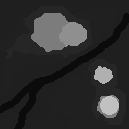
Below are some bitmaps (created in Paint Shop Pro 5 using the paintbrush, soften, and smudge tool) and their resulting terrain in SimCity 3000. You can click on the images to download the BMP files for your own experimentation!

|
= |

|
|
= |

|
Additional tips
I used Paint Shop Pro 5.0 (available from http://www.jasc.com) to create the bitmaps. Almost any paint program will do as long as it will save 8-bit grayscale bitmaps. Note that this site does not support any paint program; it is up to you to be familiar with your program.
If you are using Paint Shop Pro 5, here are some pointers that will make creating bitmaps easier:
- The easiest way to start a new image suitable for SimCity 3000 is to go to New... from the File menu and then specify the appropriate information for your image: the width and height (referencing the chart that appeared earlier in this article), "96 DPI" for the resolution, black or white for the background color, and "Grayscale (8-bit)" for the image type.
- When saving the bitmap, be sure to save it as a Windows BMP file. The default save options for this file format should work fine (Windows format and RGB encoding).
- Use the freehand soften tool to smooth out your terrain, or the freehand smear tool to "push" terrain.
- When using the color picker tool to select a level of gray, Paint Shop Pro's color palette reports three index values for red, green, and blue (RGB values). These values will all read the same since the image is grayscale. So for example, it is safe to assume that RGB values of 31,31,31 would be equivalent to index value 31.
In closing, I would like to thank Sean Breazeal for getting me started in experimenting with SimCity 3000's terrain importation feature and providing the basic knowledge used to get this article going. You can visit Sean's terrain importation page here. I would also like to thank Yoda of the SimCity 3000 Zone for creating the German version of the SimCity 3000 Elevation Palette.
See also
 What is a mile?
Get certain terrain types with SC3K terrain generator
Real terrain creation supplement
Generating terrain from USGS DEM files
Terrain editing (in German @ the SC3K Zone)
Real terrain importation Part I: Get & convert terrain
Real terrain importation Part II: Prepare & import terrain
Real terrain importation & file edit tips (Macintosh only)
Downloadable terrain editors
Simple terrain editing for dummies
Terrain importing utilities and resources
Notes on scale
Raising elevation by 352 meters



There are no comments to display.
Sign In or register to comment...
To comment in reply, you must be a community member
Sign In
Already have an account? Sign in here.
Sign In NowCreate an Account
Sign up to join our friendly community. It's easy!
Register a New Account